
Quick answer: GTM tracking means using Google Tag Manager to add and manage all your tracking codes (GA4, Google Ads, Meta Pixel) from one dashboard instead of pasting them into your theme. You install one GTM container code, then decide which tags fire, on which pages or clicks, without editing your site’s code again.
If you have ever asked a developer “what is GTM tracking, and do I really need it?”, this guide is for you. I will keep it simple, with no confusing jargon.
Here is a situation I see all the time. A business owner is running Facebook and Google ads. Their theme header has five different tracking codes pasted into it, one from every tool or freelancer they worked with over the years.
The site is slow. And after all that, they still can’t tell which ad brought the WhatsApp leads. They are paying for ads and guessing which ones work.
I am Muhammad Talha, a WordPress developer. I set up GA4, Google Tag Manager and Meta Pixel for clients so they know which ads and pages bring sales.
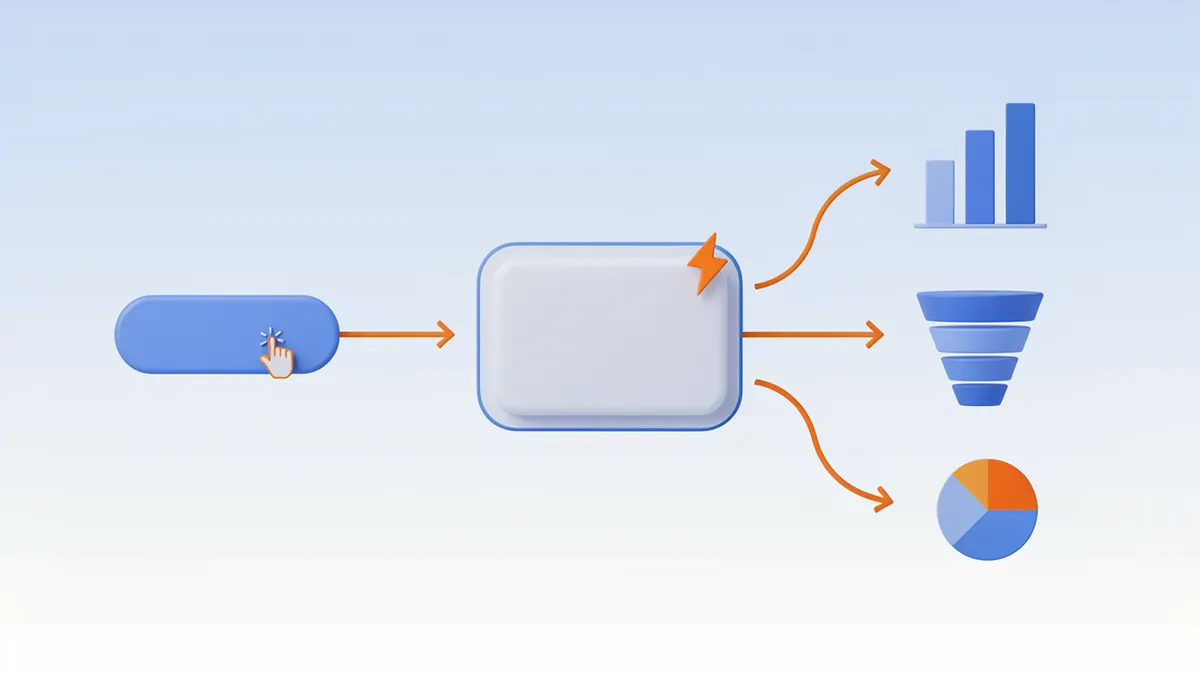
What Is GTM Tracking? (Simple Definition)
GTM stands for Google Tag Manager. It is a free tool by Google. You add one small container code to your website, and that becomes the only tracking code that lives in your theme.
All your other tracking codes, like GA4, Meta Pixel, Google Ads and TikTok Pixel, are then added and managed inside GTM instead of the theme. GTM tracking simply means tracking visitors and their actions through this one container.
Think of GTM as a switchboard for your tracking codes. Every tool plugs into the board, and you decide which switch turns on and when. You no longer need to open theme files every time a marketer asks you to add a new code.
One thing people often miss: GTM itself does not show any reports. It does not tell you how many visitors you had or where they came from. It only sends data to tools like GA4, Meta Ads Manager or Google Ads, and those tools show the reports.
If you want the official explanation, Google covers the basics in the Tag Manager Help Center.
What Does Google Tag Manager Do?
So, what does Google Tag Manager do day to day? It works with three main building blocks, plus a testing system. Once you understand these four parts, GTM stops looking scary.
Tags – The Tracking Codes
A tag is the actual tracking code. For example, a GA4 event tag, a Meta Pixel tag, or a Google Ads conversion tag. Each tag sends a piece of information to one tool.
Triggers – When a Tag Fires
A trigger tells GTM when to run a tag. It could be a page view, a button click, a form submit, or a click on a WhatsApp link. If a tag has no trigger, it never fires.
Variables – Extra Information
Variables carry extra details along with a tag. For example, the click URL, the page URL, or the order value on a WooCommerce thank-you page. They turn a plain “click happened” into useful data.
Preview Mode and Versions
Preview mode lets you test your tags on the live site before the change goes public. Every time you publish, GTM saves a version. If something breaks, you can roll back to the last working version in a few clicks.
| Part | What it means | Example |
|---|---|---|
| Tag | The tracking code | GA4 event or Meta Pixel “Lead” |
| Trigger | When the tag runs | Click on a wa.me link |
| Variable | Extra info sent with the tag | Click URL or order value |
| Preview & versions | Test first, roll back if needed | Check tags before publishing |
GTM vs GA4: What’s the Difference?
This is the most common confusion I see. Many owners think GTM and GA4 are the same thing, or that one replaces the other. They actually do different jobs.
| Question | Google Tag Manager (GTM) | Google Analytics 4 (GA4) |
|---|---|---|
| Main job | Manages and fires tracking codes | Collects data and shows reports |
| Shows reports? | No | Yes |
| Installs other codes? | Yes | No |
| Free? | Yes | Yes (standard version) |
Most sites use both together. GTM loads the GA4 tag and sends events, and GA4 turns those events into reports you can actually read.
What Can You Track With GTM? (Real Examples)
These are the things I track most often on client websites:
- WhatsApp button clicks (wa.me links). For many Pakistani businesses, WhatsApp is the main lead source, yet most tracking guides ignore it completely.
- Call clicks (tel: links). Very important for mobile visitors who prefer to call directly.
- Contact form submits, or visits to a thank-you page after the form is sent.
- WooCommerce purchases. This needs a data layer, usually added by a plugin, so GTM can read the order details and value.
- Meta Pixel events like Lead, ViewContent and Purchase for Facebook and Instagram ads.
- Scroll depth and outbound link clicks, but only when they help you make a decision.
Once these events reach GA4, you can mark the important ones as key events. I have a step-by-step guide on how to set up conversion tracking in GA4 if you want to go further.
Do I Need Google Tag Manager?
Short answer: it depends on what you want to measure. Here is how I usually answer “do I need Google Tag Manager?” when a client asks.
| Your situation | Need GTM? |
|---|---|
| Simple blog with just GA4 | Maybe not. Google Site Kit is fine. |
| Running ads on Facebook or Google | Yes |
| Want WhatsApp, call or form tracking | Yes |
| WooCommerce store with ads | Yes |
| Using multiple marketing tools | Yes |
My honest view: if you only need page views and basic traffic numbers, GTM can be extra work for little gain. A direct GA4 install or Site Kit will do the job.
But the moment you spend money on ads, you need to know which clicks turn into leads. That is where GTM really pays off.
How GTM Tracking Works on a WordPress Site (Basic Steps)
Here is the basic flow. This is an overview only, not a full tutorial.
- Create a free account and a web container at tagmanager.google.com.
- Add the two GTM snippets to your site: one in the head and one right after the opening body tag. Use a lightweight plugin or your theme’s hooks.
- Inside GTM, add a GA4 (Google tag) with your Measurement ID.
- Create a trigger, for example a click on links that contain wa.me, and connect it to a GA4 event tag.
- Test everything in Preview mode and confirm the tags fire.
- Click Submit and publish the container so the changes go live.
For detailed settings, follow my GA4 conversion tracking guide linked above. If you want the technical side, Google’s Tag Manager developer documentation is also useful.
Common GTM Mistakes I Fix on Client Sites
Most tracking problems I fix are not complicated. They are small setup mistakes that quietly ruin the data for months.
- GA4 installed twice. One copy comes from a plugin and another from GTM, so page views and events are counted double.
- Only half the GTM code installed. The head snippet is there, but the body part is missing.
- Changes never published. Someone builds tags and triggers, tests them, and forgets to click Submit. Nothing is live.
- Speed plugins delaying GTM. When GTM waits for user interaction, quick visits and early clicks are lost. I always check the script delay settings first.
- Tracking every scroll and every click. Reports get so noisy that nobody can find the events that matter.
- No cookie consent setup where it is needed, for example when you get visitors from the EU or UK.
- The developer owns the GTM account. If they disappear, the business loses access. Always make sure you own every account and add your developer as a user.
GTM Tracking Checklist
Use this checklist before you call your setup done.
| Task | Done? |
|---|---|
| GTM container is in the business’s own Google account | ☐ |
| Both GTM snippets installed (head + body) | ☐ |
| GA4 installed only once | ☐ |
| WhatsApp click trigger created | ☐ |
| Call click trigger created | ☐ |
| Form submit / thank-you page trigger created | ☐ |
| Everything tested in Preview mode | ☐ |
| Container submitted and published | ☐ |
When to Get Professional Help
If your ads are running but you can’t see which ones bring leads, or your tracking numbers look doubled, it is time to get the setup checked.
My Analytics & tracking service covers GA4, Google Tag Manager and Meta Pixel, set up properly so you know which ads and pages bring sales. As a WordPress developer in Lahore, I set up every account in your name, not mine.
FAQs
What is GTM tracking in simple words?
GTM tracking means using Google Tag Manager to manage all your tracking codes from one place. GTM fires those codes at the right moment and sends the data to tools like GA4 and Meta, which show the reports.
Is Google Tag Manager free?
Yes. The standard version of Google Tag Manager is free. There is a paid enterprise version called Tag Manager 360, but small and medium businesses usually don’t need it.
Can I use Google Analytics without Google Tag Manager?
Yes. You can add GA4 directly with the Google tag or through Google Site Kit. GTM becomes useful when you want to track clicks, forms and ad conversions in more detail.
Does Google Tag Manager slow down my website?
GTM loads asynchronously, so the container itself does not block your page from loading. What affects speed is the tags you add inside it. Keep only the tags you actually need and remove old ones.
What is the Google Tag Manager tracking code?
It’s the container snippet GTM gives you: one script for the <head> and one <noscript> part for right after the opening <body> tag, both containing your container ID (GTM-XXXXXXX). Once it’s on every page, you add all other tags inside GTM.
Conclusion
So, what is GTM tracking in one line? It is one container on your site that manages all your tracking codes, so you can see which ads, pages and buttons bring real leads.
If you run ads, get leads on WhatsApp or sell with WooCommerce, GTM is worth setting up properly. If you only run a simple blog, GA4 on its own may be enough.
Want me to set it up for you? Send me a message on WhatsApp and tell me a little about your website.